
Featured image: AI-generated illustrative scene, not an actual customer job or product test.
A white word can be visible in a customer’s PDF and disappear when the file reaches production. One possible cause is an overprint setting on an ordinary white object. The quickest useful response is to inspect the final PDF under print-preview conditions, identify the object and send a precise correction request.
Adobe® Acrobat® Pro provides the tools for that inspection. The workflow below combines Adobe’s documented preview controls with a practical shop handoff. It is a researched troubleshooting guide, not a report of a printer or RIP test. A preview can reveal a problem without proving how every output system will process the file.
Understand which white you are looking at
On ordinary white paper, a white area in process-color artwork typically means no process ink is applied there. A white object that knocks out creates an opening in the color below it. If that same process-white object is set to overprint, it can fail to create the intended opening and effectively disappear in color-separated output.
A named spot-white plate for printing on clear, colored or other nonwhite material is a different production instruction. Its correct behavior depends on the printer and RIP workflow. Do not remove every white-looking object or overprint setting from a UV-print file because a process-color example behaved differently.
Before changing anything, write down the intended output: process print on white stock, white ink on clear material, a specialty separation, or another specified construction. That single sentence can prevent an enthusiastic “fix” from deleting a necessary plate.
Inspect the PDF that will actually be printed
Save the received file unchanged and work on a clearly identified inspection copy. Record the filename, revision and affected page. If the customer sent three versions, settle which version is approved before analyzing all three. A correct source document does not establish that the latest exported PDF is correct.
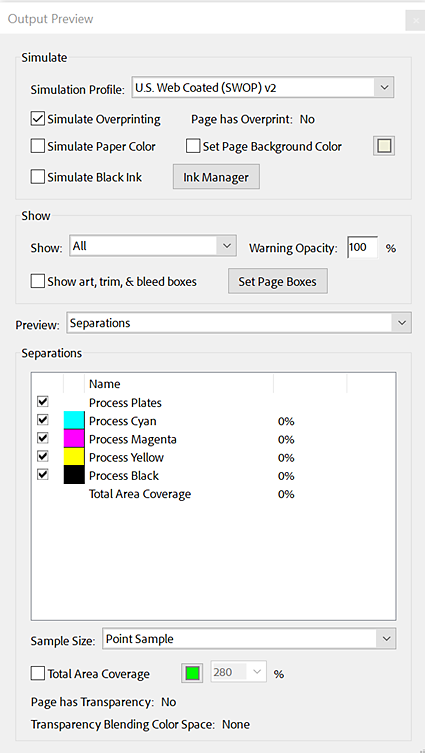
Adobe’s current instructions place the relevant control at All tools → Use print production → Output preview. Enable Simulate Overprinting and select an appropriate simulation profile for the intended output. Compare the affected area with the simulation on and off. Then use the separation display and Object Inspector to investigate the object and its color information.
Do not copy the simulation profile in an example screenshot simply because it is visible. A web-offset profile shown in documentation is not a default recommendation for a wide-format printer, a digital press or your chosen material. Ask the production provider which output condition belongs to the job.
Compare three pieces of evidence
A useful diagnosis connects the visible symptom, the object’s actual color construction and the customer’s intended result. None of those should be replaced by a guess based only on the object’s appearance on screen.
- Visible symptom: identify exactly what changes when overprint simulation is enabled. “White subtitle disappears on page 2” is more useful than “the colors are wrong.”
- Object evidence: inspect whether the element is process white, a named spot color, an image or another construction. Check the relevant separations instead of relying on a thumbnail.
- Intended result: confirm whether the area should reveal the white substrate, receive white ink, remain transparent or print another color.
For a hypothetical flyer on white stock, a disappearing process-white subtitle might warrant a correction in the source layout. For a clear window graphic with a named white plate, the same visual symptom calls for a discussion about white-ink handling. The file’s production purpose determines the next step.
Correct at the source, then re-export
When possible, ask the designer to correct the affected object in the originating layout and export a new PDF using the agreed settings. Preserve deliberate overprints elsewhere. Globally flattening, converting colors or stripping special settings can create unrelated problems that are harder to identify than the original one.
Send a compact correction note: page and location, observed behavior, intended appearance and requested revision. For example: “On page 2, the white subtitle disappears with overprint simulation enabled. This is process printing on white stock; please make that subtitle knock out and send a revised production PDF.” That is an example request, not a diagnosis to reuse before inspection.
If the shop is authorized to edit the PDF directly, save a new revision and record the exact change. Route the revised appearance back through the appropriate proof approval. The ability to repair a file does not remove the customer’s role in approving a visible design change.
Recheck more than the repaired word
Open the exported replacement as a fresh file and repeat the original comparison. Inspect the repaired location, other reversed-out elements and any intended spot plates. Confirm the page count and page dimensions as well. It is easy to fix a subtitle while exporting the wrong page range.
Then follow the shop’s normal output verification. Adobe notes that separation preview does not establish every production property, including trapping and halftone details. Use the agreed proof or test output when the job requires it. Keep the simulation state, output intent and any provider-specific handling in the job ticket so the next operator can reproduce the check.
This targeted inspection belongs alongside the broader print-ready artwork checklist. For jobs with a separate contour-cut operation, also keep the production path distinct from the appearance proof, as covered in our Illustrator cut-path workflow.
A small release record prevents a repeat
Before release, record five items: approved PDF revision, intended substrate and ink construction, affected object, correction owner and verification result. Keep the original and corrected files together without overwriting the incoming source. When the customer reorders, that record explains why the latest file differs from the version sitting in an old email.
Primary references
- Adobe: preview overprint in Acrobat Pro
- Adobe: preview output, separations and object information
- Adobe Creative Suite printing guide: the process-white overprint example (legacy conceptual reference; current interface steps use the current help pages)
References checked October 11, 2026. Adobe and Acrobat are either registered trademarks or trademarks of Adobe in the United States and/or other countries. This independent article does not imply Adobe sponsorship or endorsement.