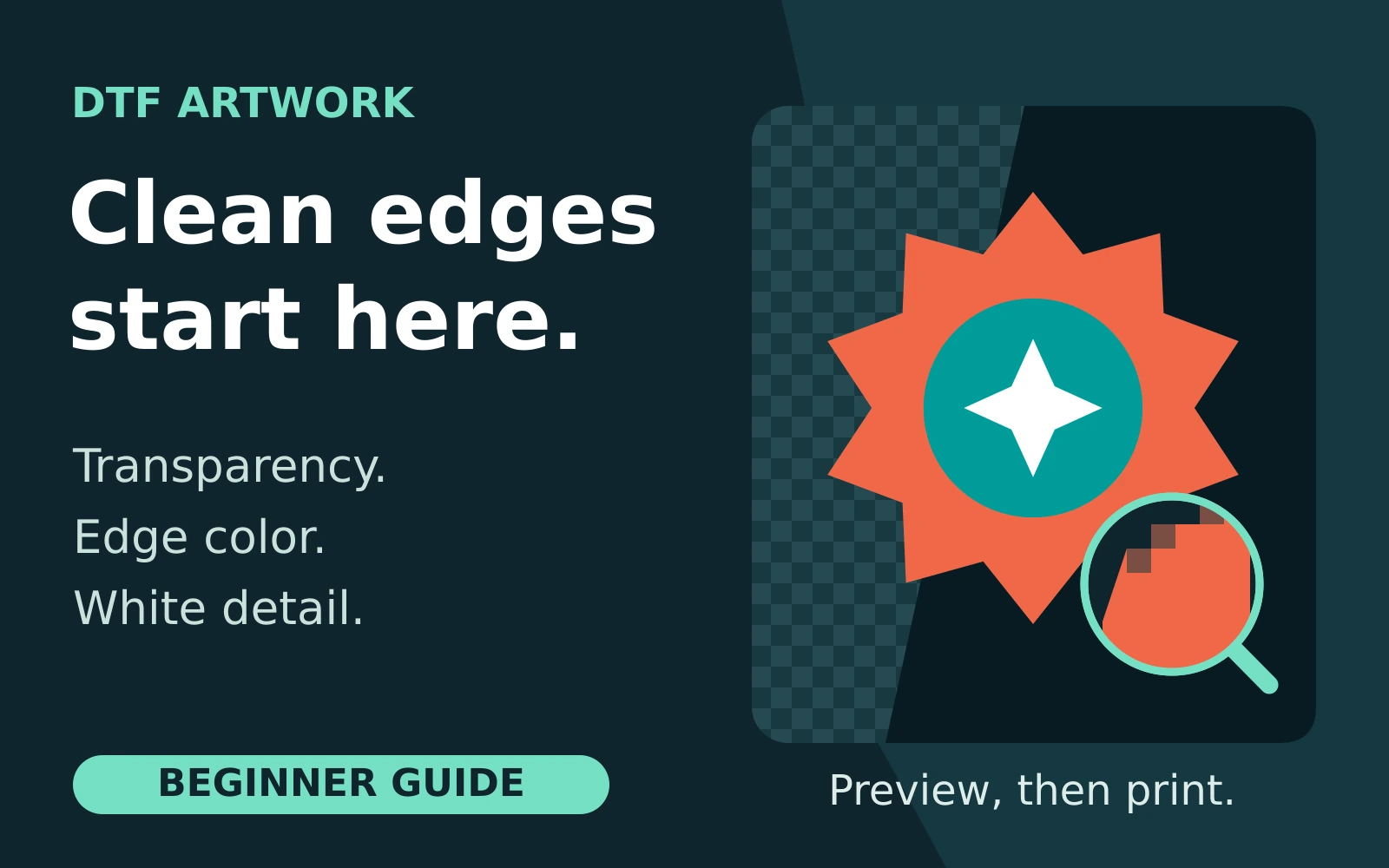
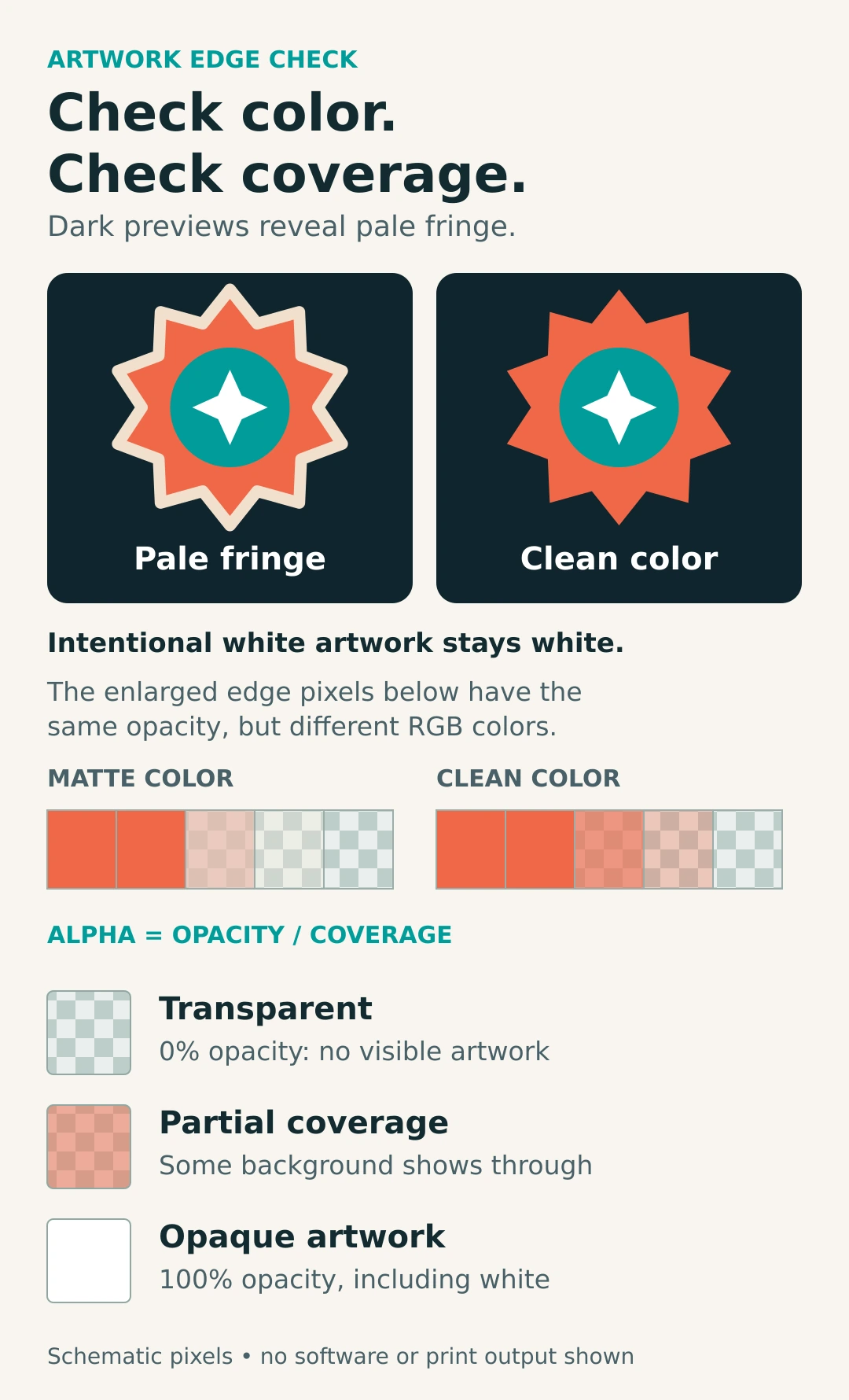
A transparent PNG can still produce an unwanted pale edge on a DTF transfer. The background may be gone while light-colored fringe pixels remain, or the printing software may build a white underbase that extends beyond the color.
Start by checking the exported artwork, then the printer’s white layer. This workflow helps you separate those problems before ordering a full run. Examples and diagrams are illustrative; they are not results from a Top Class print test.
Understand what you are looking at
Three different things affect the edge:
- The visible preview combines the artwork with a display background. White on white can hide a fringe that becomes obvious against black.
- Pixel transparency, often called alpha, describes how opaque each pixel is. A partly transparent pixel can still contain pale color from an old background. Adobe explains how anti-aliased selections retain fringe colors.
- The white underbase is production data for white ink behind the design on the finished garment. Its shape and density depend on the print workflow. It is not the checkerboard shown by your image editor.
Intentional white lettering is artwork. Transparent space between the letters is an opening for the garment to show through. Deleting every white pixel can destroy that distinction.
Prepare the artwork at its final print size
Ask the transfer supplier for its file, color-profile, resolution and minimum-detail requirements. For example, STAHLS’ UltraColor MAX specifications prefer transparent PNG raster files, recommend 300 DPI at actual size and list 150 DPI as the minimum. The same sheet requires clean edges without fading transparency. Those are that product’s requirements, not a rule for every DTF system.
Suppliers often call image resolution “DPI”; for image files, calculate pixels per inch: pixel width divided by printed width in inches. A 2,400-pixel design printed 8 inches wide supplies 300 PPI; at 12 inches it supplies 200 PPI. Check the height too. Changing a resolution label alone does not add detail. Adobe’s resampling guide explains the difference.
Our print-ready artwork checklist covers the wider handoff. For DTF, inspect thin strokes and isolated dots at the actual ordered size, particularly when reducing a large graphic for a chest logo.
Clean the background without deleting white artwork
- Keep an editable master and work on a production copy.
- Place temporary black, white and contrasting-color backgrounds beneath the design. Inspect at 100% for individual pixels, then at an approximate finished-size view for readability.
- Remove unwanted backgrounds and stray pixels. Look closely inside letters, between disconnected shapes and around pale edges.
- If a cutout carries white-background contamination, try a suitable matte-removal or defringe operation on the copy. Adobe documents Remove White Matte and Defringe. Recheck fine detail and intended white areas afterward.
- Hide the temporary backgrounds, export with transparency, then reopen the exported file and repeat the background checks.
Do not include a shirt-color rectangle merely to improve the preview: it can become printed artwork. A separate mockup is safer for showing placement.
Resolve shadows and fades before sending
A color gradient inside an opaque shape differs from an edge that fades into transparency. STAHLS’ DTF artwork guidance distinguishes printable full-color effects from soft edges that can lose definition or adhesion.
For example, a blue-to-purple badge can retain a solid outside boundary. A smoky glow fading into the shirt needs a separate decision. Ask whether the provider wants a defined edge, removal of the glow, or a specifically supported halftone treatment. Do not assume every partly transparent pixel must be deleted, or that a web-style shadow will print as previewed.
Use white-underbase controls carefully
If you print in-house, inspect the processed white separation in your RIP, the software that prepares the printer’s output. Compare it with the color boundary and transparent openings. A normal composite preview may not reveal the actual white ink data.
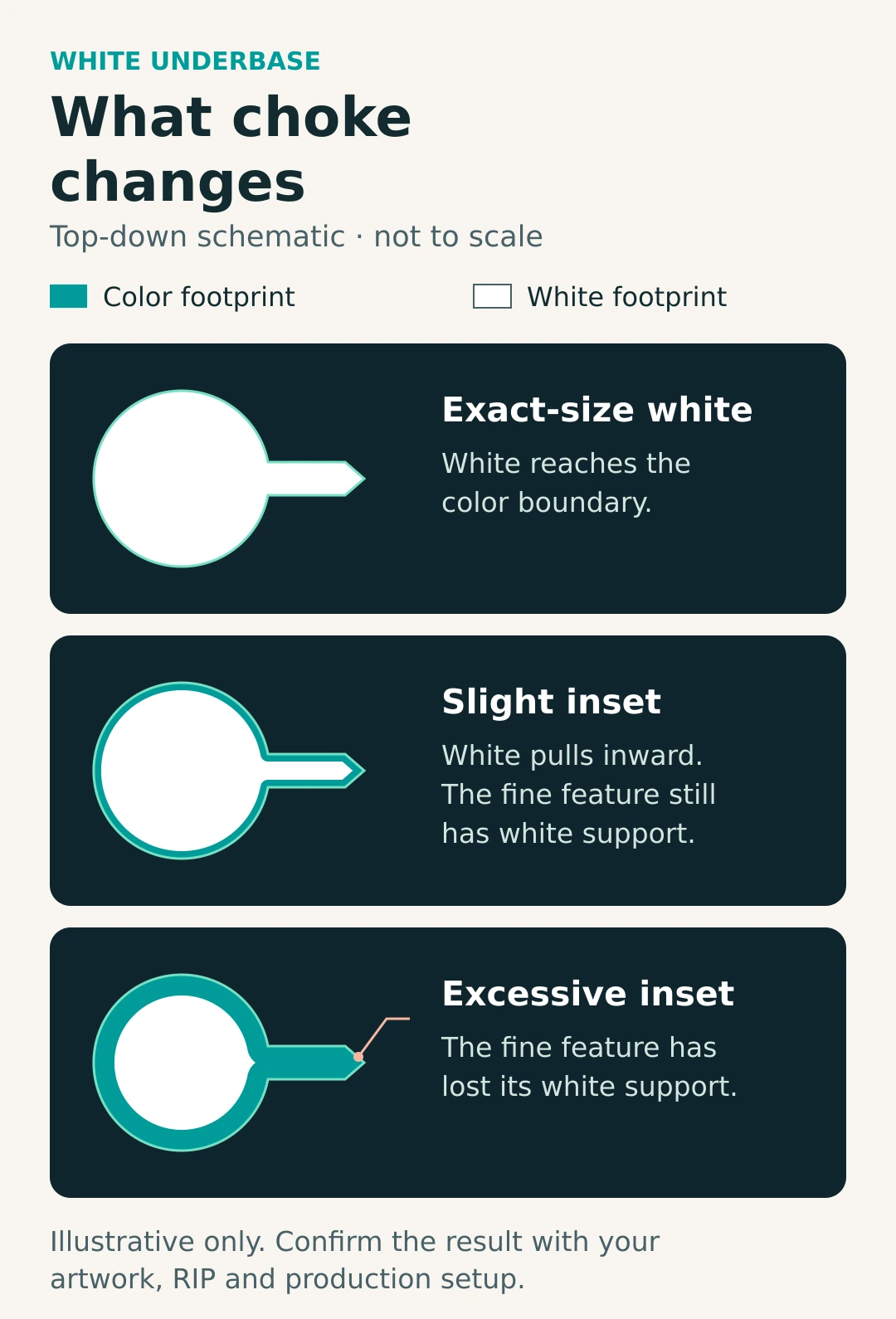
CADlink’s Digital Factory documentation describes choke as pulling the underbase inward. It also documents opacity-related controls, including adaptive white density. These change different things: reducing white ink strength does not necessarily shrink its footprint.
Choke can limit white showing beyond an edge, but it cannot repair pale color pixels in the artwork. Excessive inset can leave colored edges or narrow strokes without the intended white backing. Use the instructions for your printer, RIP version and print mode; there is no universal choke number to copy. A pixel-based setting also depends on the RIP’s processing resolution.
If clean artwork still prints with displaced edges, check production alignment before increasing choke. Epson’s SureColor F1070 troubleshooting guide, for example, includes print-head alignment and flat film loading. Those checks are model-specific.
Approve a physical sample before the full run
Send the final file with its intended dimensions, garment color and notes identifying white artwork and show-through areas. Ask who generates the underbase and whether unusual fades need adjustment. STAHLS’ product guidance recommends a sample run when particular colors matter.
For an unfamiliar design or workflow, approve a transfer pressed onto the actual garment type and color. Follow the supplier’s application and care instructions. Check the outline, smallest lettering, open spaces, color and adhesion; a screen proof cannot establish all of these.
Save the approved export, sample reference and production details together. Our repeat-order job-record guide explains what to preserve. That record gives you a useful comparison when the next batch looks different.
Primary documentation checked October 13, 2026. Supplier requirements and software controls can change; confirm the current instructions for your job.