A barcode can look sharp on screen and still cause problems on the finished package. The usual trouble starts when it is treated like a logo: squeezed into a spare corner, cropped to remove white space or recolored to match the brand.
For retail packaging, protect three things before approving the artwork: the correct symbol and data, the space needed to reproduce it, and a plan to check the printed result. This guide focuses on UPC/EAN linear barcodes, with a separate note on QR codes.
Start with a barcode brief
Before placing artwork, ask the brand owner and printer to confirm:
- The product and pack variant the barcode must identify
- The approved GTIN, or Global Trade Item Number, and required barcode type
- Where it will be scanned, such as a retail checkout or distribution operation
- The packaging material, printing process and final finish
- Who will check the data, approve the proof and arrange printed barcode verification
Keep these answers with the job. A useful handoff names an owner for each check, so the designer is not silently expected to approve product records or the printer expected to select the identifier.
Also confirm that the product data has reached the retailer. GS1 US explains that trading partners need the product/GTIN data in their systems to retrieve the right information at checkout. A readable symbol alone does not complete that setup.
Choose the size before you finish the layout
Obtain the production barcode from the brand owner’s approved source. Keep it linked to the correct product record rather than rebuilding bars by hand or tracing a screenshot.
Barcode sizing starts with the symbol and its intended application. For UPC-A, the X-dimension describes the width of the narrowest bar. Bar height, overall width, readable digits and surrounding clear space also affect the footprint you must reserve. There is no single minimum size that fits every barcode and scanning environment.
The GS1 US UPC-A guidance advises against resizing or cropping its downloaded symbols without professional help. If the allocated space changes, ask the barcode provider or printer for correctly prepared artwork at the new size. Do not shorten the bars to make room for copy.
For the wider file setup, use our print-ready artwork checklist. A barcode still needs its own size and reproduction checks alongside the rest of the design.
Keep quiet zones clear
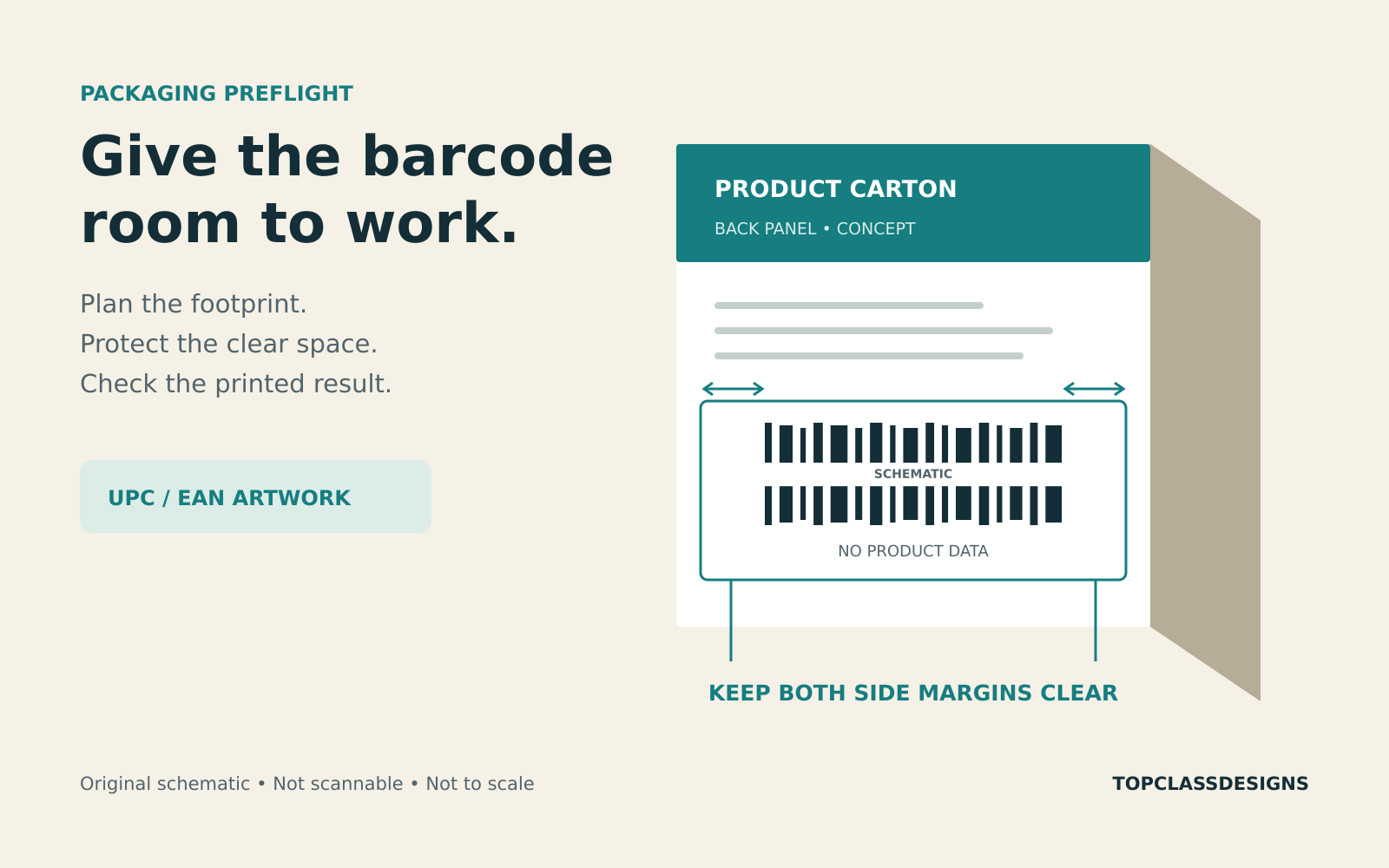
A quiet zone is clear space the reader needs beside a linear barcode. Treat it as part of the barcode’s footprint. Keep nearby copy, borders, illustrations and other printed detail outside it.
The required margins depend on the exact symbol. Do not apply one UPC-A measurement to every EAN/UPC variant, or borrow a QR-code margin for a linear barcode. Get the applicable dimensions from the barcode supplier using the current GS1 specifications.
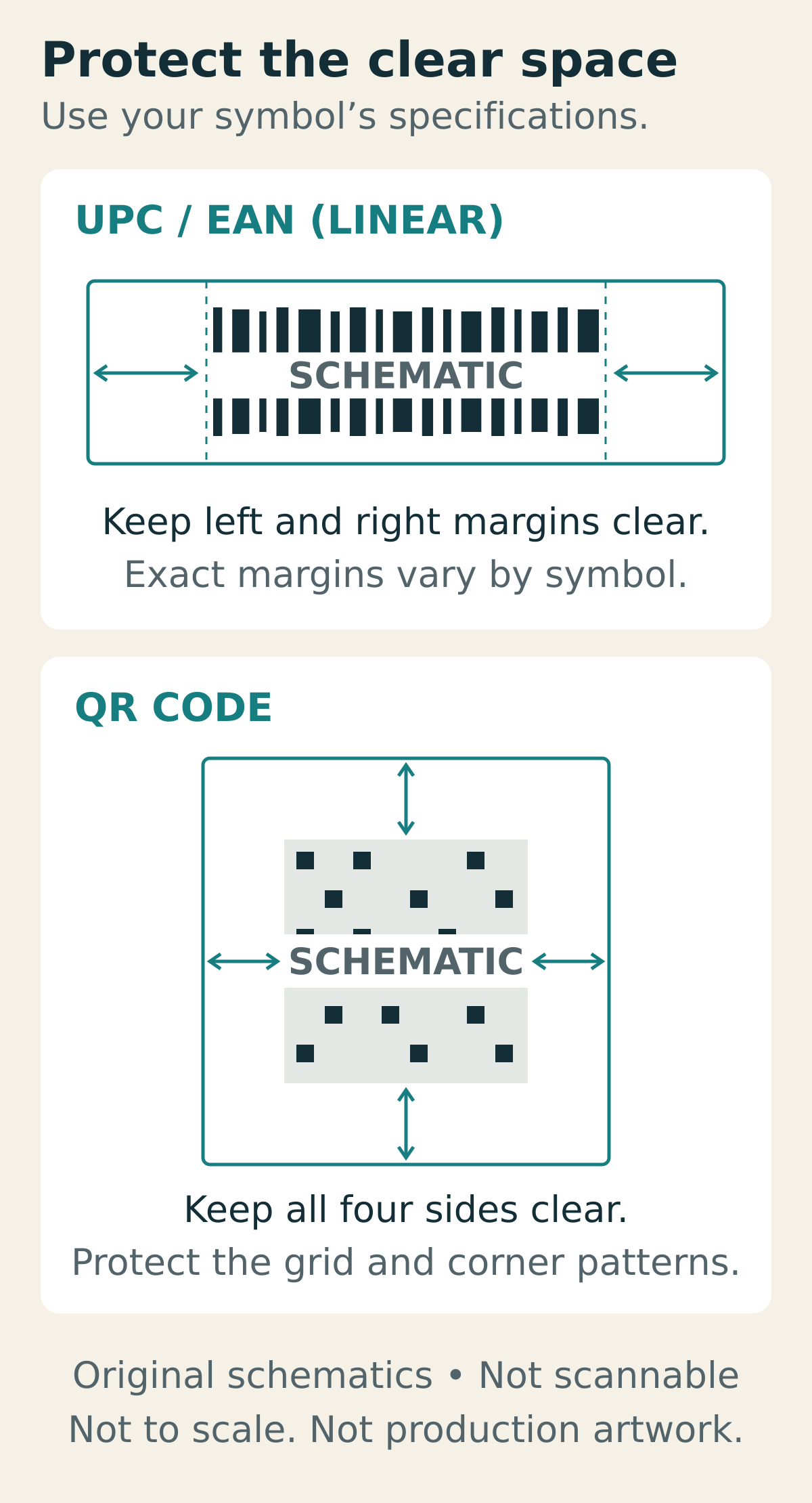
QR codes need clear space on all four sides. Their grid and corner patterns also need protection. GS1’s retail 2D implementation guideline explains that altering these patterns, squeezing the grid or placing graphics in the quiet zone can harm decoding. A QR code that opens a marketing page should not be assumed to replace the required checkout barcode; confirm the retail use and data requirements first.
Check the ink, background and finished shape
For UPC/EAN artwork, black bars on a white background are the straightforward starting point. GS1 US recommends a single ink color for the bars rather than a four-color build. Avoid red or reddish bars, and preserve a light background through the spaces and quiet zones. See its barcode placement and printing guidance.
On transparent or translucent packaging, ask the printer how that background will be produced. GS1 UK cautions against relying on the package contents to supply the background color. A white rectangle on a design canvas does not establish how opaque the printed label will be.
Review the assembled package as well as the flat artwork. Seams, wrapping, wrinkles and curvature can interfere with access to the symbol. These appear among GS1’s common barcode quality checks. Show the printer where the symbol lands after folding, filling or applying the label.
Inspect the PDF, then check a printed sample
Inspect the exported production PDF at its intended size. Confirm that the barcode is complete, its digits match the approved record and nearby artwork has stayed outside the reserved space.
In Illustrator, use View > Overprint Preview when reviewing overprint behavior. Adobe describes this as an approximation of printed color interactions and recommends checking separated artwork too. Agree on background, ink and overprint handling with the printer.
If a label has a cut path, keep that production information distinguishable from printable artwork. Our guide to separating Illustrator cut paths from customer proofs covers that handoff.
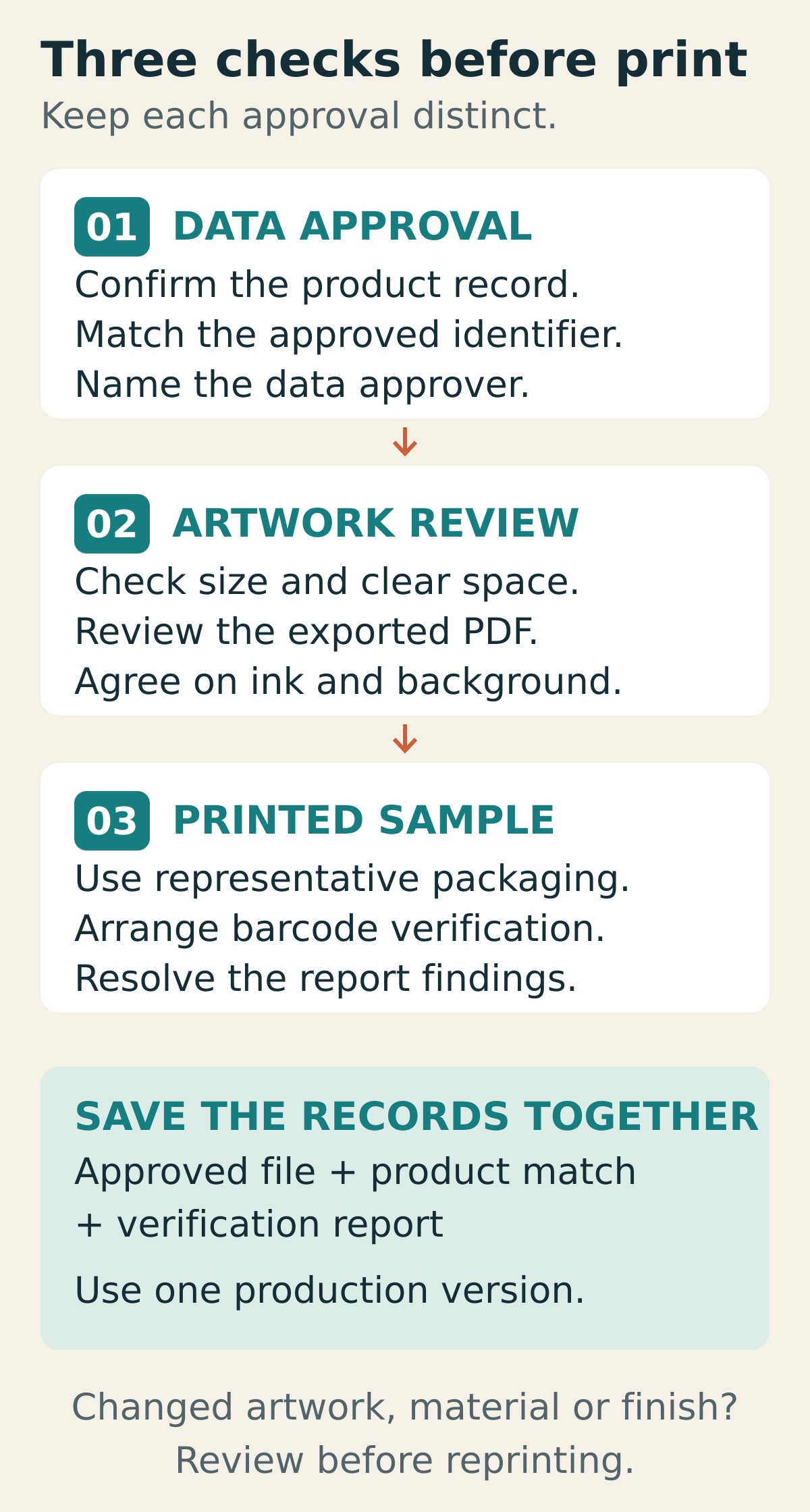
A successful phone or handheld scan is a useful spot check. It does not establish print quality across other readers. GS1 distinguishes scanning from measurement with a verifier in its retail barcode test guidance. Arrange the appropriate verification with the printer or a qualified service, using a sample representative of the finished packaging.
Ask for the report and resolve its findings before release. The applicable test conditions and acceptance requirements belong to the specific symbol and use case; do not assume one passing grade covers every job.
A simple example: a carton redesign
Imagine a fictional tea brand updating a carton. The designer receives approved barcode artwork, but a larger ingredients panel crowds its space. Instead of compressing the symbol, the team rearranges the back panel and has the printer confirm the resulting footprint.
The brand owner checks the product match. The designer reviews the exported PDF. The printer checks a representative finished sample and supplies verification results. They archive the approved file and report together. If the material, finish or barcode artwork changes later, that change triggers another review before reprinting.
The practical rule is simple: decide the barcode requirements early, protect them through layout and export, and include the printed package in approval.