An SVG logo handoff should answer four questions: does the file have the right bounds, does the lettering survive without the designer’s fonts, are all image assets present, and does the result work at its actual website size? A logo that looks correct on a large artboard can still arrive with excess space, substituted lettering or missing details.
Agree on the intended placements with the developer before exporting. A navigation logo, a footer signature and a small standalone mark may need different approved variants. The following checks help turn the approved design into a dependable web delivery.
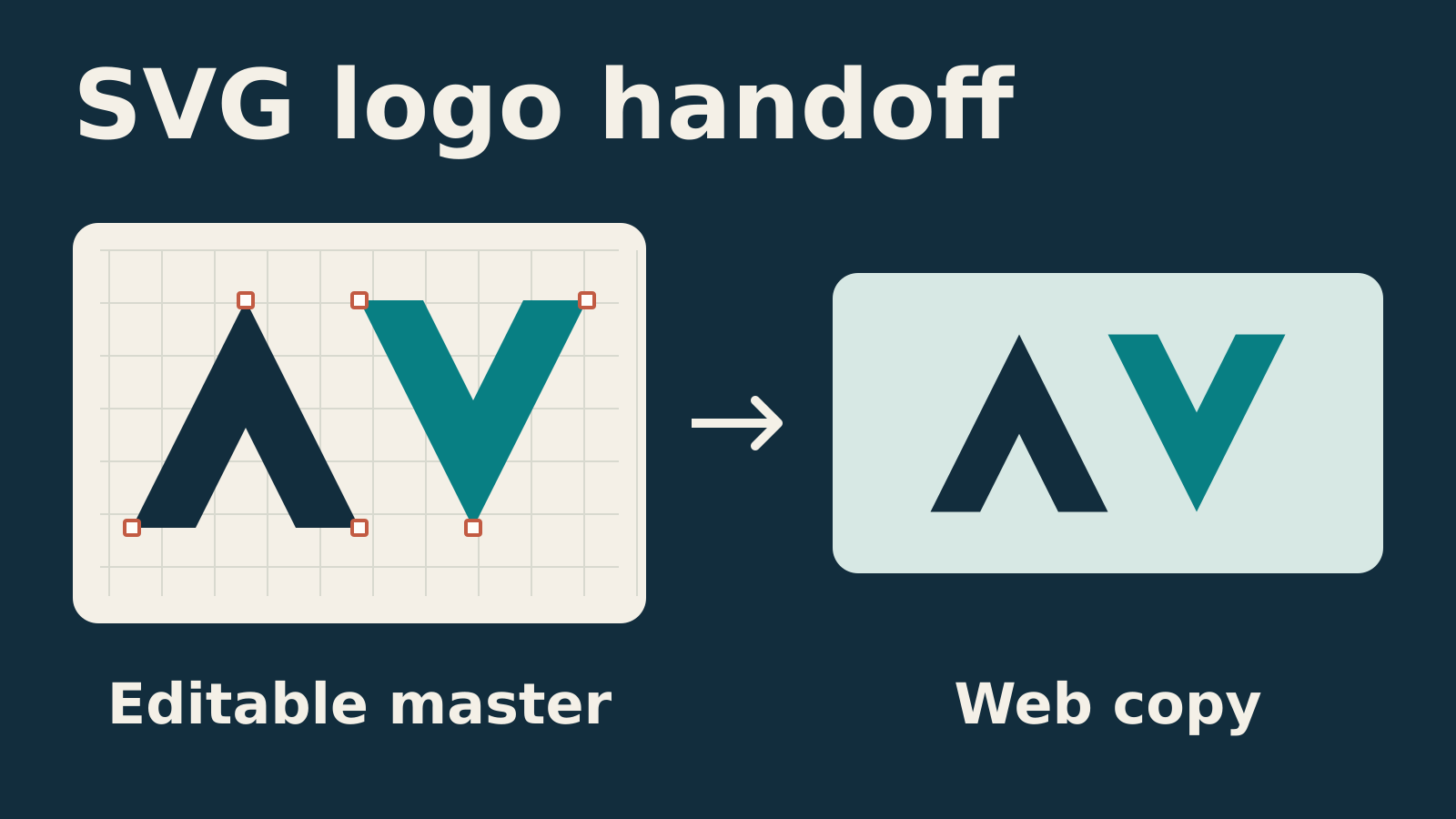
Keep an editable master and a web copy
Preserve the native design file with editable type, layers and original assets. Adobe recommends saving Illustrator artwork in AI format while creating it, then exporting for the destination. Give the web copy a clear version name, such as brand-logo-horizontal-web-v03.svg, and keep production or print masters separately labeled.
This separation also helps when a logo sits within a larger visual system. The Affinity brand-campaign workflow explores adapting a graphic across formats; each final placement still needs its own export check. Avoid overwriting the source with the simplified delivery file.
Check the viewBox and intentional clear space
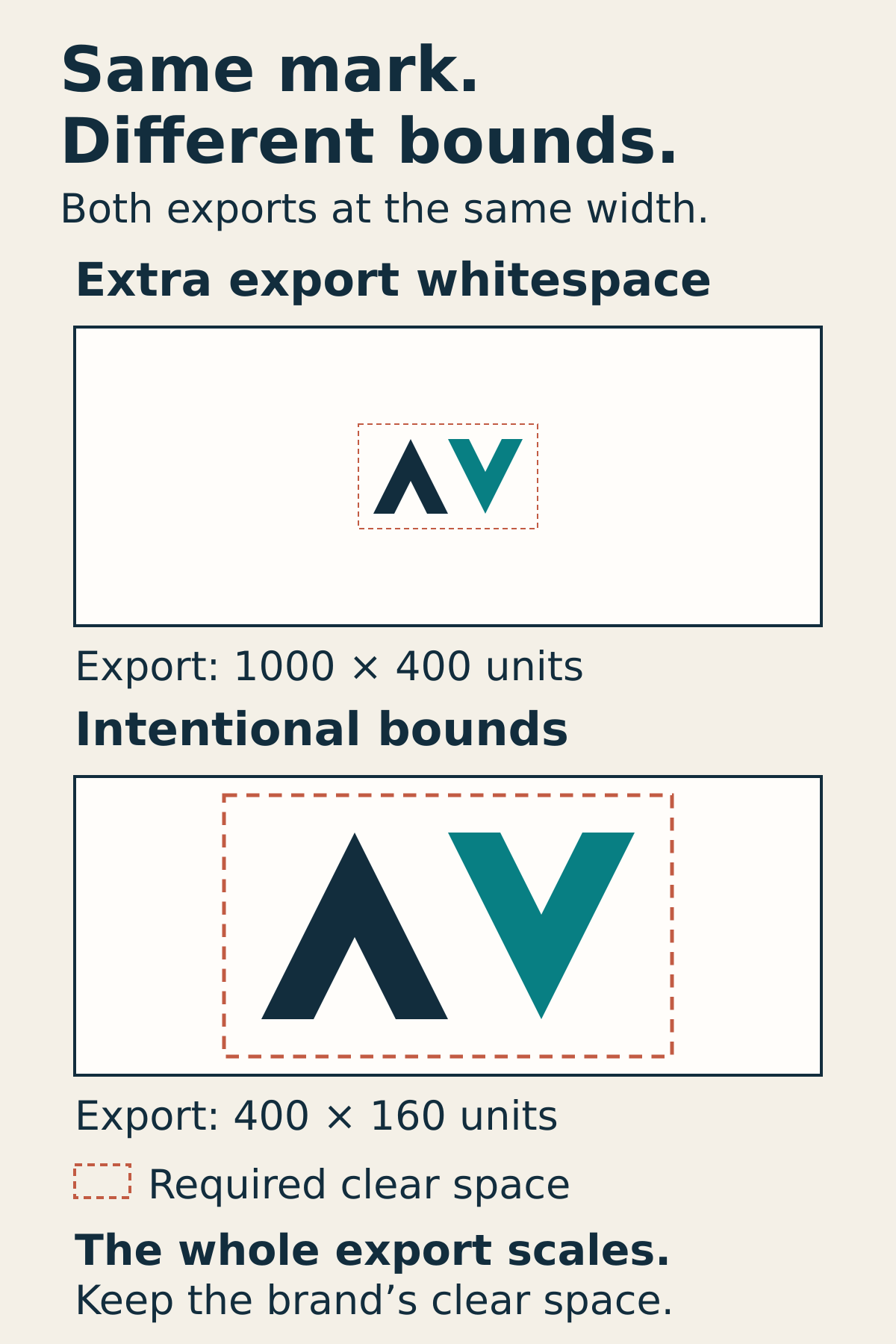
The viewBox describes the SVG’s internal drawing rectangle. W3C specifies how that rectangle maps into the displayed viewport. Empty area inside it scales along with the artwork, so a loosely framed logo can appear unexpectedly small at a given website width.
Frame the delivery around the mark and its agreed clear space. Remove accidental export padding, and inspect stroke edges and effects for clipping. Record whether required spacing is included in the file or supplied by the layout, so it is neither doubled nor omitted.
In Illustrator, File > Export > Export As offers SVG export; Use Artboards exports the artboard bounds. Adobe’s SVG export documentation also explains that the artboard background itself is not exported. A filled rectangle can still create an unwanted background, so inspect the actual file.
Decide how lettering will travel
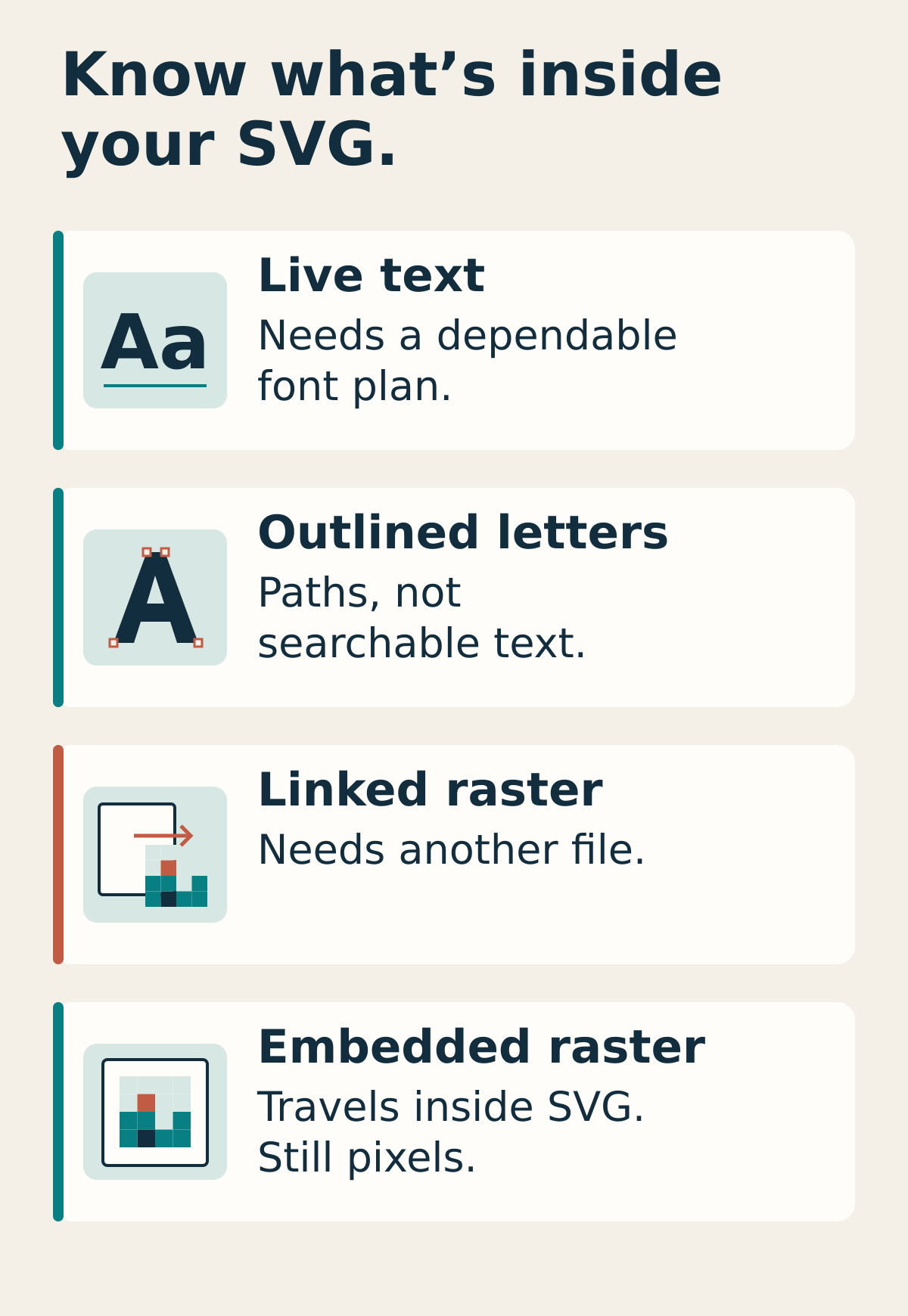
Live SVG text needs a dependable font plan. Identify the intended font and ask the developer to verify its availability in the actual embedding method. A font installed on the designer’s computer is not proof that visitors will see it. The SVG text specification distinguishes text characters and their rendered glyphs.
For a fixed wordmark, an outlined web copy can remove that lettering’s font dependency. Illustrator can convert type to vector paths. The letters become paths: they no longer function as searchable or selectable text. Keep the editable lettering in the master, and agree on accessible labeling separately.
When the logo is the only content of a homepage link, its text alternative should identify the destination, such as “Example Studio home.” W3C’s functional-image guidance also explains when adjacent link text makes a repeated image label unnecessary. The developer should check the complete link, not just the artwork.
Find raster content and external dependencies
An SVG can include raster content. The SVG image element can reference PNG or JPEG images. A placed texture or photograph remains pixel-based even when the surrounding shapes are vectors. Inspect such details at their largest intended display size; the .svg extension alone does not guarantee unlimited sharpness.
Illustrator offers embedded or linked images during SVG export. Embedded image data travels within the SVG; linked content depends on another file. Embedding does not turn pixels into vector paths. Ask whether that raster content is necessary, and document any dependencies that remain.
Test the intended embedding method. MDN documents restrictions when SVG is used as an image, including external-resource loading. Opening an SVG directly in a browser is therefore insufficient to prove it will work inside an HTML image element. Have the developer test the delivered file in its destination context.
Review the delivered file at real display sizes
Ask for a test page using the actual exported asset and the planned layout. Inspect it at normal browser zoom on desktop and phone. For a hypothetical header, widths of 120, 180 and 240 CSS pixels might reveal problems; use the project’s actual sizes rather than treating those examples as a standard.
- Check small counters, fine strokes and spacing at the smallest placement.
- Review approved light and dark versions against their intended backgrounds.
- Confirm the logo retains its proportions and does not clip when the layout changes.
- Compare the deployed result with an approved reference after any optimization.
If details disappear, request an approved small-size variant. Simply making the file vector does not decide which details remain legible. Record the tested sizes, browsers, revision and any restrictions alongside the files.
Deliver through the supported site workflow
Include the final SVG, editable master, approved preview, variant names and a short note covering bounds, fonts, raster content and tested placements. Give the developer a clear acceptance reference instead of several ambiguously named “final” files.
Use the site’s approved, supported upload pipeline and developer review. SVG acceptance and handling vary by platform; a visually correct file is not a security review. OWASP’s upload guidance calls for layered validation. If the pipeline rejects the file, ask the developer for an approved delivery route or supported fallback while keeping existing protections in place.