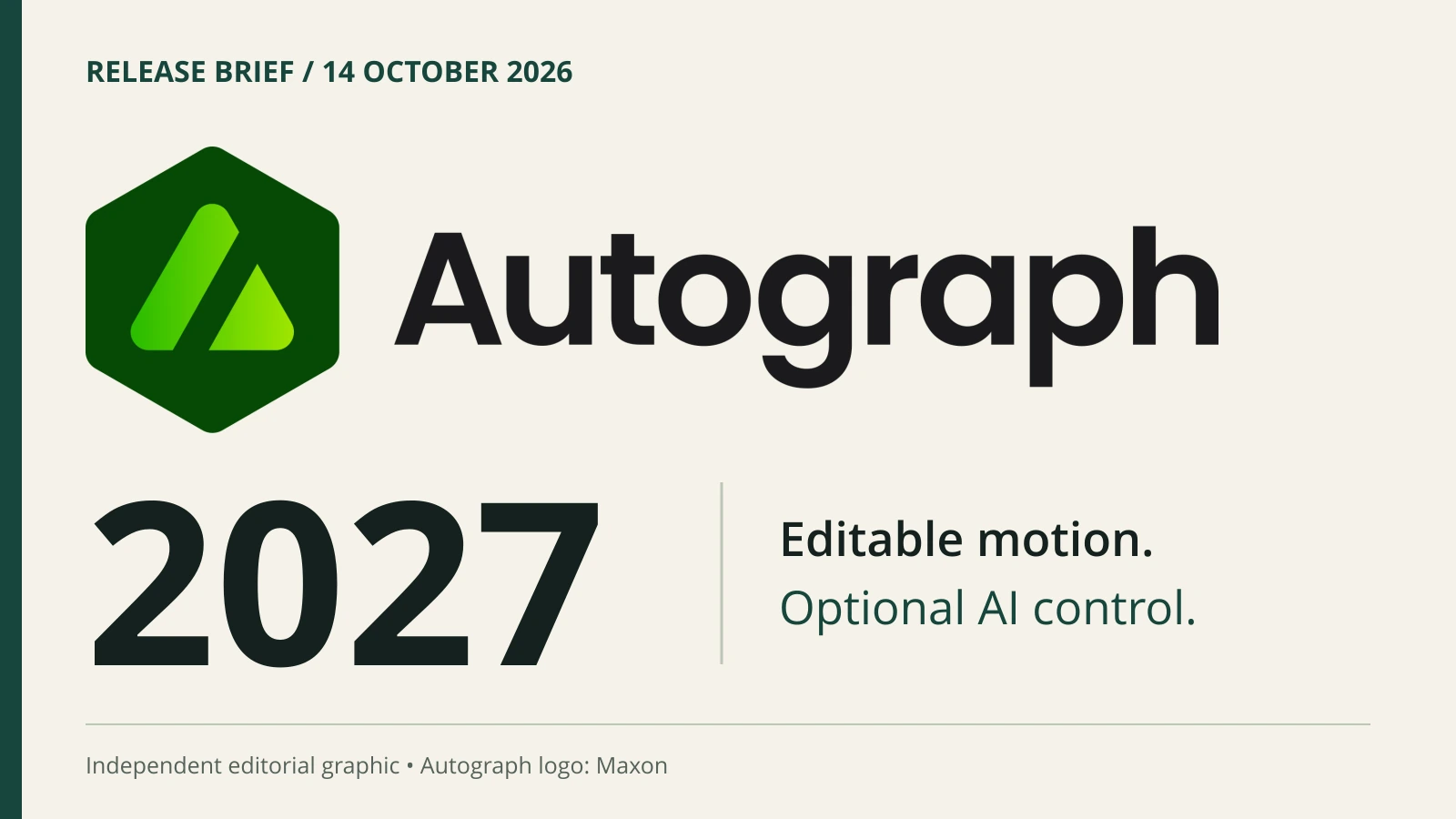
Featured image: independent editorial layout using the official Autograph logo © Maxon under its press branding permission. No endorsement implied.
Maxon’s free Autograph motion-graphics app has a new way to work with AI. Released on October 14, 2026, Autograph 2027.0 adds a built-in connection that lets compatible assistants use the application’s tools. For designers who already make logos, campaign graphics and promotional artwork, the useful question is simple: could this make a small animation project easier to start?
The update is available through Maxon’s downloads page, which lists Autograph 2027.0.0 for Windows and macOS. Here’s what changed, what remains free, and how to approach a first project. This is an explanation of the announced features, rather than a hands-on performance review.
What the new AI connection actually does
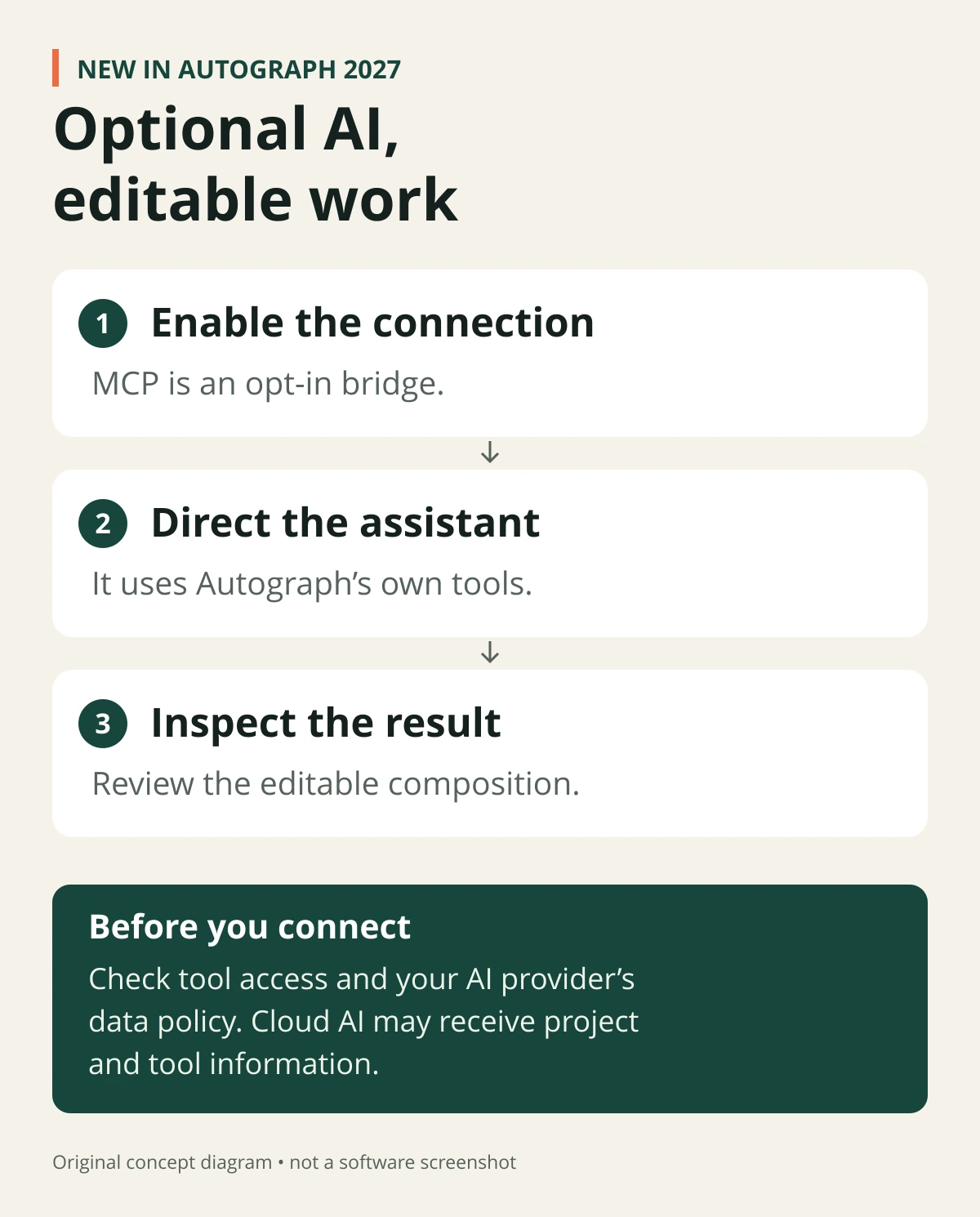
MCP stands for Model Context Protocol. In Autograph, it provides a bridge between a compatible AI assistant and the application. Maxon’s October 14 release notes describe agents constructing compositions, using native Bounce and Elastic animation controls, and building responsive layouts. Maxon names Claude and ChatGPT as examples of compatible assistants.
That gives designers a way to ask for changes inside an editable project. You still need to inspect the result, adjust timing and make the creative decisions. The release notes describe capabilities; they do not establish how reliably every assistant will follow a particular brief.
Autograph 2027.0 also adds access to Adobe Fonts installed through the Creative Cloud desktop app. For Cinema 4D users, a new copy-and-paste workflow transfers supported elements such as cameras, lights, nulls and compatible primitives, including animation. It should not be read as a promise that any complete Cinema 4D scene will transfer perfectly.
Where it fits a graphic designer’s workflow
Autograph already supports importing SVG artwork from tools such as Illustrator and Figma, plus PSD files from Affinity and Photoshop. Its existing tools include animated text and compositions that can be rendered in multiple formats. Those are established capabilities on Maxon’s product page; today’s news is the additional AI connection and workflow updates.
If you are still developing the static artwork, our guide to Affinity’s Blend tool for brand campaigns is a related starting point. Settle the core graphic before deciding how it should move.
A sensible starting point is artwork you have already approved. A shop-opening graphic could become a short social clip. A logo and strapline could become a restrained introduction for a promotional video. A static offer could become a loop for an in-store digital display.
These are suggested uses, not demonstrations we have tested. Choose one clear message and one simple movement. A readable offer with a gentle entrance is a more manageable first brief than an entire animated brand campaign.
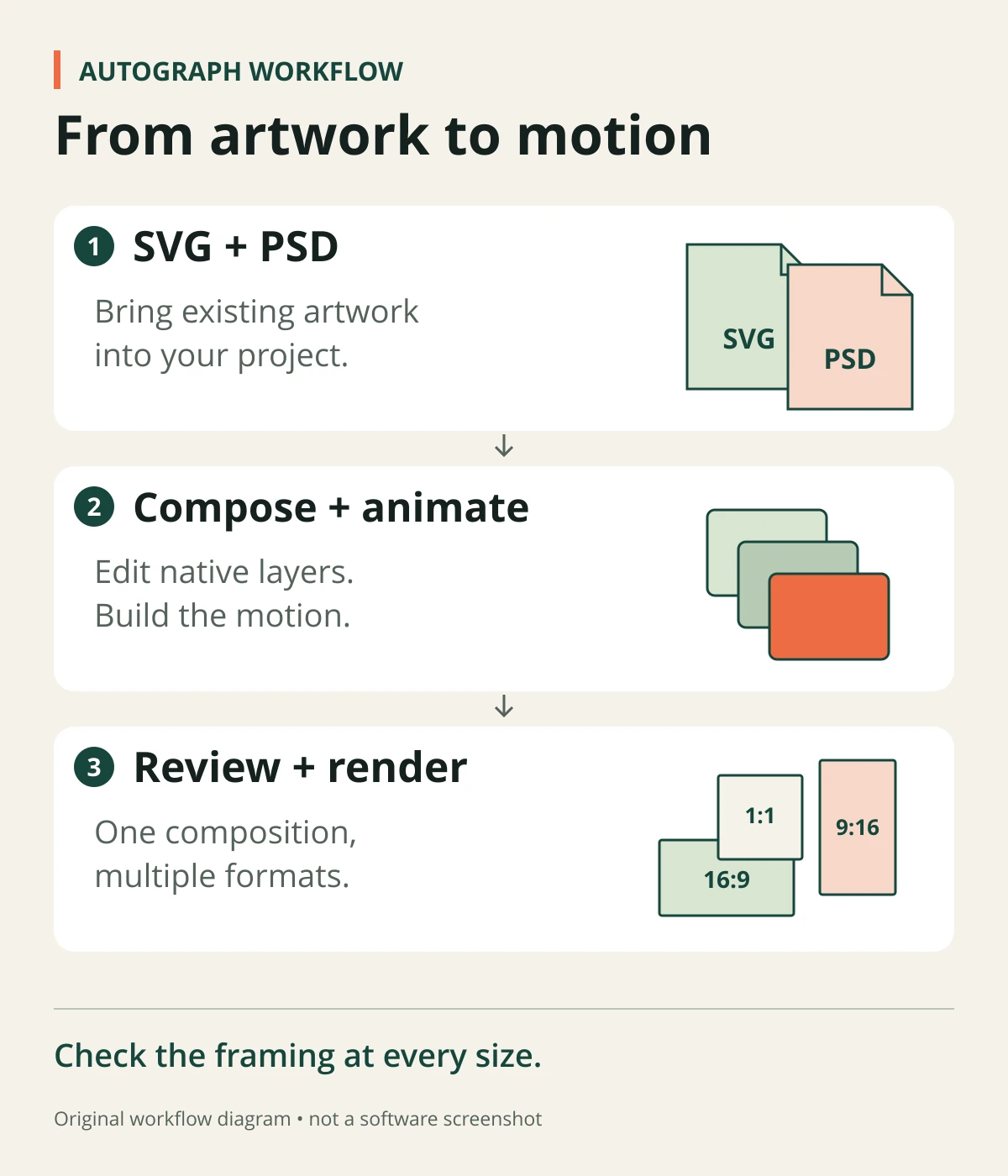
Try one small animation before committing client work
Use a copy of an existing design, or make a sample with no confidential information. Keep the original artwork and work through these checks:
- Define the destination. Write down the display orientation, pixel dimensions, duration and delivery requirements. A phone-first clip and a shop’s screen may need different layouts. Confirm the player’s accepted file type and other settings before exporting.
- Prepare the artwork. Give objects and layers useful names. After importing, inspect the logo, images, fonts and transparency before adding motion. Maxon’s PSD import documentation lists unsupported Smart Objects and adjustment layers, plus limitations around layer styles and masks.
- Ask for one bounded change. For example: “Create a five-second composition using these supplied elements. Bring in the logo gently, hold the offer long enough to read, and keep the typeface and colors unchanged.” Treat this as a test brief, not a guaranteed one-prompt result.
- Review the editable project. Check what changed, whether the movement suits the brand, and whether text remains readable throughout. Watch the transition between the last and first frames if the animation will loop.
- Check the exported file. Play it outside the design app and, where possible, on its intended device. Confirm that the message survives the smaller screen or viewing distance. Save the approved project and output with clear revision names.
What is free, and what can still cost money?
Autograph itself remains free to download and use. Maxon says its Universe plugins and Red Giant OFX tools require their own licenses. The update’s Adobe Fonts support works with fonts installed through Creative Cloud; it does not announce a new free font subscription.
An AI assistant’s plan, model access or usage charges are separate. Check the assistant’s current connection support before paying for anything. Autograph also remains a desktop application: Maxon’s current system requirements specify Apple Silicon for Autograph on Mac, excluding Intel Macs. Windows users should check the GPU requirements rather than assume any laptop will qualify.
Check permissions before connecting an assistant
The MCP connection is something you choose to enable. Read the permissions offered by the application and assistant, and start with the access needed for your test. Save a project copy before allowing automated edits.
As Maxon’s MCP explainer notes, a server running locally can still work with an AI model in the cloud. Prompts, tool results or scene information may therefore leave the computer. Review the provider’s data settings before using client assets, unpublished campaigns or other confidential material.
Also check whether the connection permits file changes or code execution. Protect any connection credentials, keep them out of screenshots, and avoid enabling broader network access simply to make setup easier. These are general precautions; the exact controls depend on the software and assistant you connect.
Is Autograph 2027 worth exploring?
For designers considering simple motion work, the free app offers a reasonable place to experiment with one existing graphic. The useful test is whether you can produce an editable, on-brand result and deliver it correctly. Judge that before promising faster turnaround or adding animation to a client package.
Autograph arrives within Maxon’s broader Fall 2026 release, alongside Cinema 4D, ZBrush, Redshift and Red Giant updates. You do not need to adopt the whole suite to explore Autograph. Start with a small brief, check the permissions, and keep the final creative review in your own hands.
Release information, availability and requirements checked on October 14, 2026.