LightBurn Camera Print & Cut is worth evaluating if lining up printed work repeatedly consumes your setup time. Its appeal is straightforward: let a head-mounted camera locate registration marks, then use those measurements to position the cutting job.
LightBurn introduced the feature in its October 12, 2026 announcement for 2.2 RC6. Sources were rechecked on October 17: 2.2 RC8, announced October 16, remains an early-access build. This is a researched assessment, not a hands-on accuracy test. Check the current release notes before choosing a version to install.
What camera registration could improve
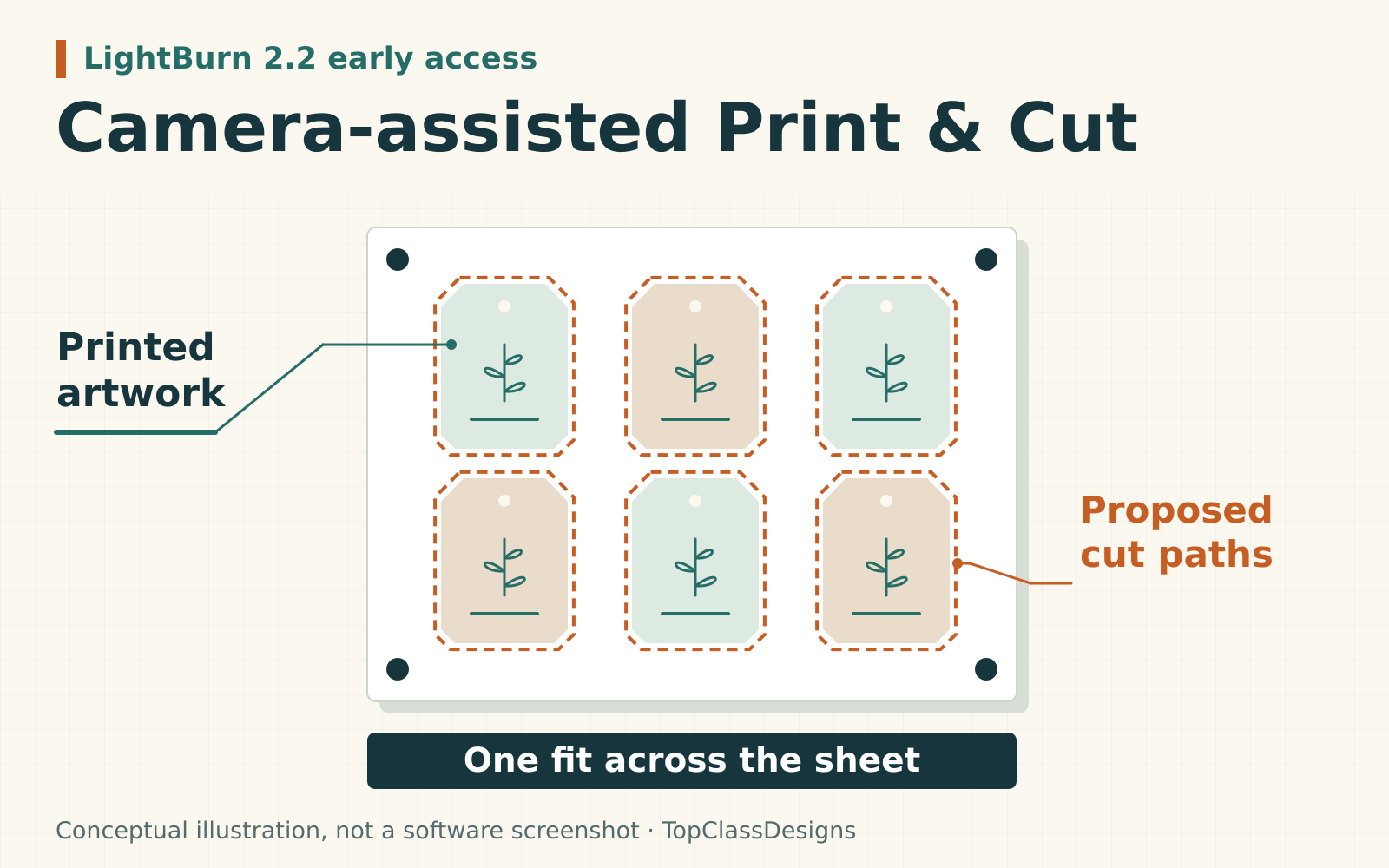
Classic Print & Cut uses two marks located manually. The camera workflow automates mark finding, creating an opportunity for a more repeatable registration routine. Instead of treating every reload as a fresh visual alignment exercise, a shop can build a marked master file and evaluate a consistent camera-assisted sequence.
Consider a sheet of printed card tags with decorative borders, or printed display pieces that need matching outer shapes. Those are useful trial candidates when the complete material system is approved for the laser. The question is whether registration becomes easier while the finished borders remain acceptable. Any time saving needs to be measured on your equipment.
Keep the example modest: one sheet, one artwork revision and a simple contour. Starting with a customer deadline, mixed materials and several new settings makes a failed trial much harder to diagnose.
Verify the machine, camera and material first
The documented workflow requires a connected gantry laser, with a head that travels around the bed. Galvo lasers are excluded. A lid-mounted overview camera alone does not meet the head-camera requirement.
LightBurn’s 2.2 camera guide distinguishes lens calibration, which corrects image distortion, from alignment, which connects the camera view to the machine’s workspace. Complete both, and enable Include in Overlay for the head camera. Follow the documented setup for your camera and machine rather than improvising a mount or changing protective hardware.
Check the stock, ink, adhesive and coating together. Do not put ordinary PVC sign vinyl under a laser because the software supports Print & Cut. Trotec lists PVC among unsuitable materials that can produce hazardous gases or dust. Keep the machine’s required enclosure, extraction and supervision practices in place.
Prepare a file that makes errors visible
Keep the marks separate
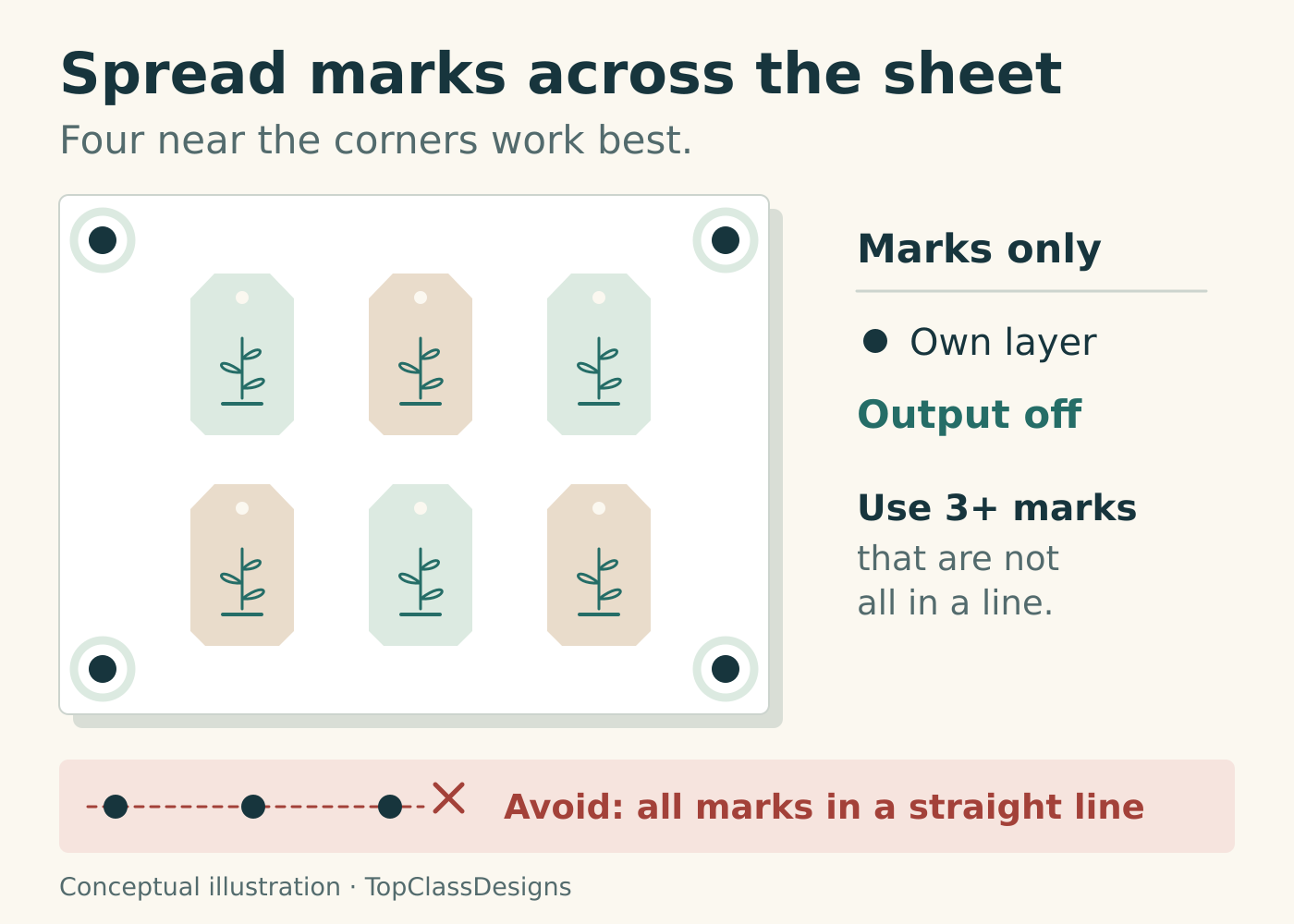
Use at least three non-collinear marks: they cannot all sit on one straight line. The early camera documentation recommends four near the sheet’s corners. Put them on a dedicated layer; dark filled circles on a light background are a simple supported choice. Print at 100% scale, with “fit to page” disabled, and confirm that the marks layer is not set to laser output.
Separate artwork from cutting instructions
Save a clean print version and its matching cutting file under the same revision. Keep technical contours out of the printed artwork unless they are deliberately part of the test. Our guide to separating production paths from customer proofs explains that distinction; its VersaWorks spot-color names are specific to that workflow, not LightBurn instructions.
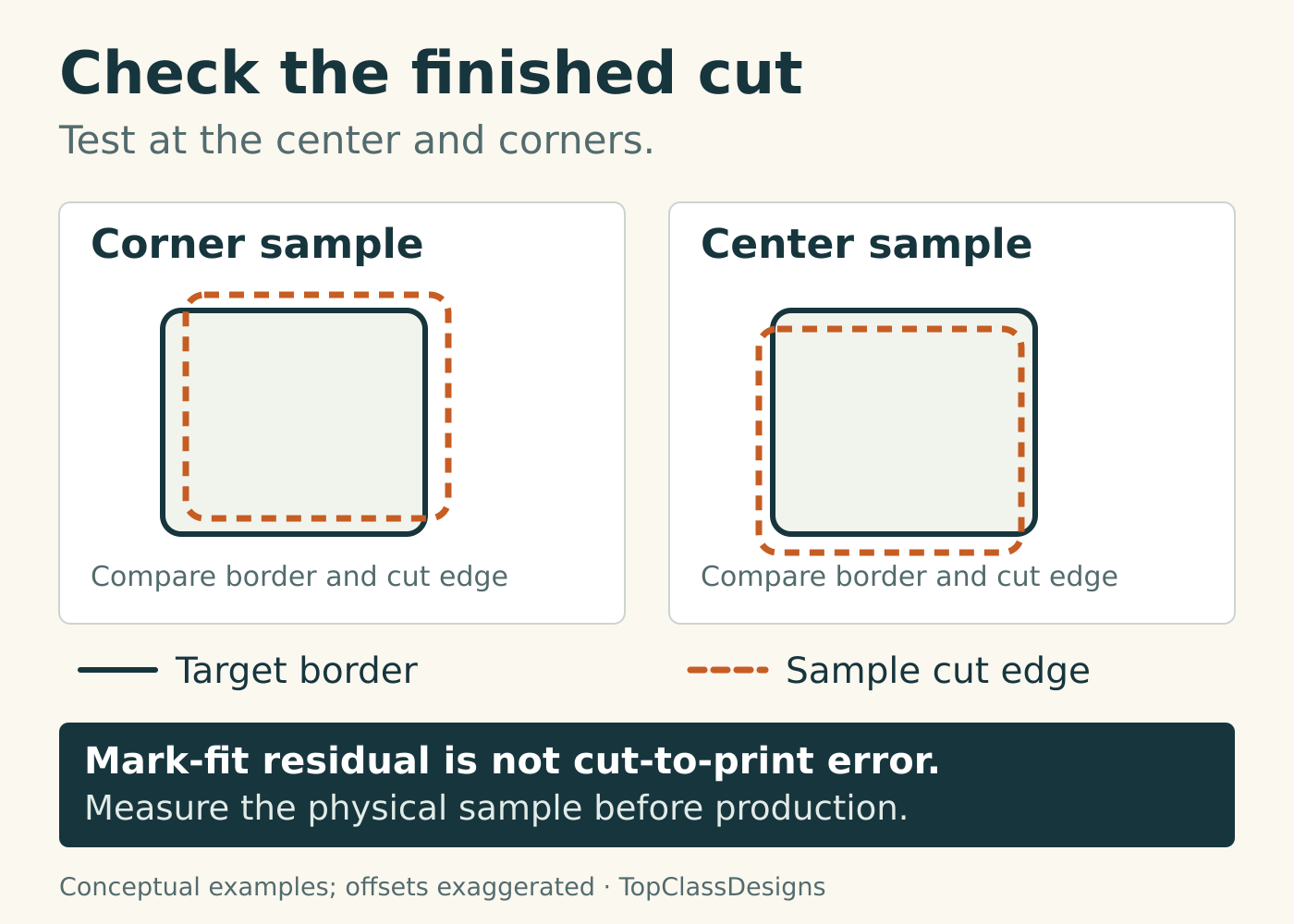
Include a shape near each corner and one near the center. Give some shapes a visible border so a shifted cut is easy to notice. Add a known dimension to your inspection notes and measure the printed sheet before blaming the camera for a size problem.
Run the registration sequence deliberately
Open Window > Camera Print & Cut. Verify Mark Layer, place the sheet, jog the camera over the requested starting mark, and select Find Marks. The software searches the other marks and applies the fit when they are found and agree.
According to the versioned Camera Print & Cut manual, adjustments can cover position, rotation, uniform scaling and directional stretch. Stretch checking needs four or more marks. These corrections apply across the sheet; they do not establish the quality of every individual cut.
Before running a sample, inspect the selected operations, material settings and job extent using your established machine checks. Registration is one part of the job setup. It does not select suitable cutting settings for you.
Judge the finished sample, then repeat
Choose a tolerance before the trial
Write down what the product needs: an even border, a minimum clear space around text, a finished dimension or several of these. Choose an acceptable cut-to-print deviation for that product. A broad decorative edge and a tight frame around small text may need different limits.
Inspect the center and outer samples separately. Record the largest deviation you find rather than relying only on an average. A camera’s mark-fit error describes agreement between registration measurements; it is not a guarantee of finished-part accuracy. Check actual edges and dimensions before calling the trial successful.
Measure the complete routine
Start a new mark search for every freshly loaded sheet; the previous fit is cleared when you reset it or start a new search. Record setup time, search interruptions, rejected pieces and inspection time. Keep printer settings, stock and artwork revision consistent while making the comparison. Photograph the samples with a scale reference and label their positions.
Compare those records with your current process. A shorter alignment stage is useful only if extra checking or rework does not consume the saving. Our finishing-labor guide shows why hands-on time belongs in that comparison.
Stop on unexplained mismatches
If a mark conflicts with the others, investigate before proceeding. Check the printed revision, scaling, mark visibility and sheet condition. Change one suspect cause, rerun the trial and keep the result. Do not force an uncertain fit onto saleable work.
LightBurn’s early-access guidance supports installing test builds alongside the official release and warns against experimenting on urgent large jobs. Check your license or trial eligibility before installing, and keep a proven route available. The worthwhile outcome is a documented setup that repeatedly meets your product’s needs, with evidence of any labor saving.