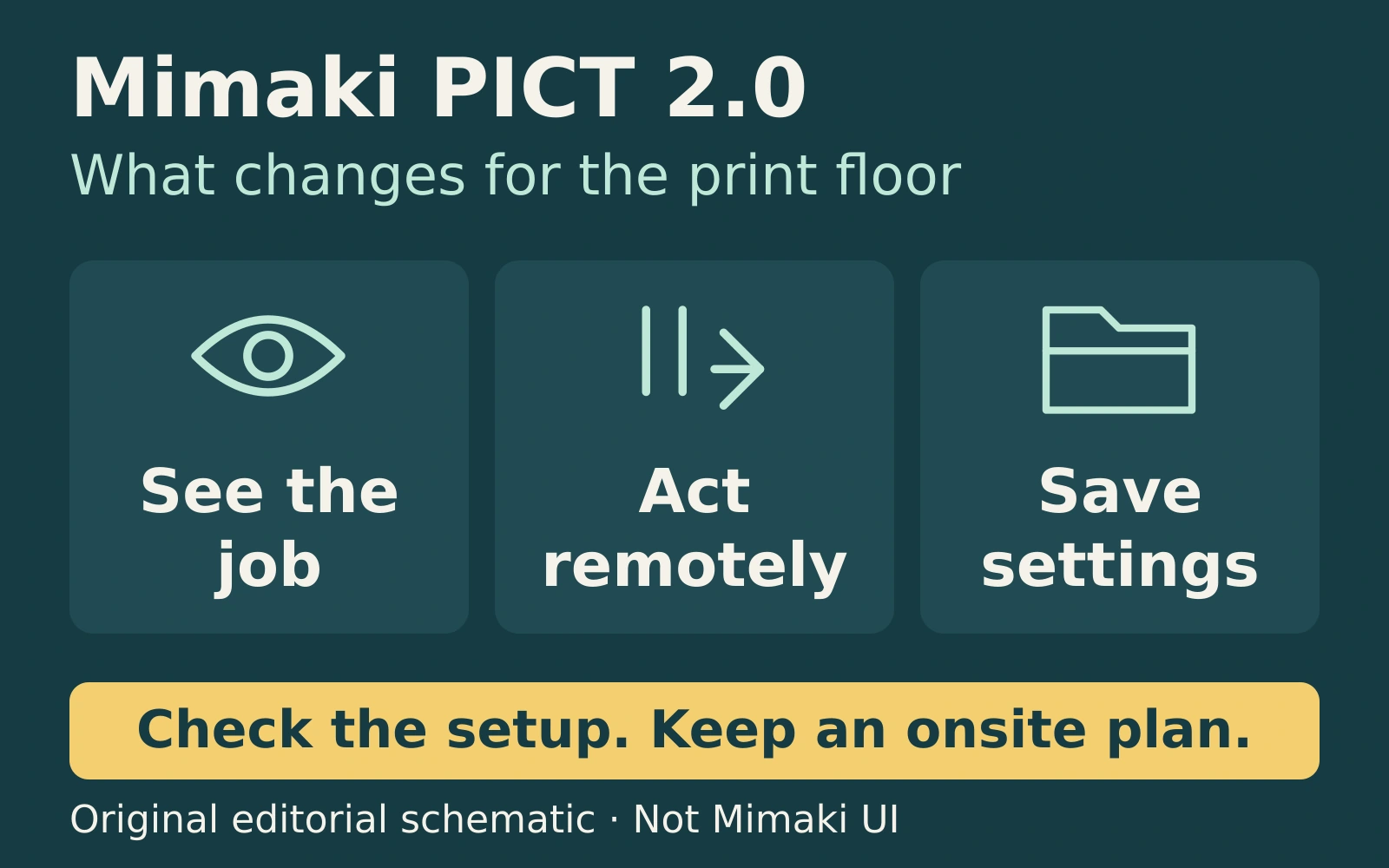
Mimaki PICT 2.0 adds remote camera viewing, printer commands and cloud storage for RasterLink8 settings. The October 16, 2026 release notes identify the service as PICT 2.0.0 and the Windows client as PICT Up 2.00. For print shops, the useful question is how these additions fit a supervised production workflow.
PICT already provides browser-based printer monitoring on computers and mobile devices. The new release gives operators more ways to inspect and respond to a job. This guide explains Mimaki’s published changes and proposes checks before deployment; it is not a hands-on performance or reliability review.
Check what the camera actually shows
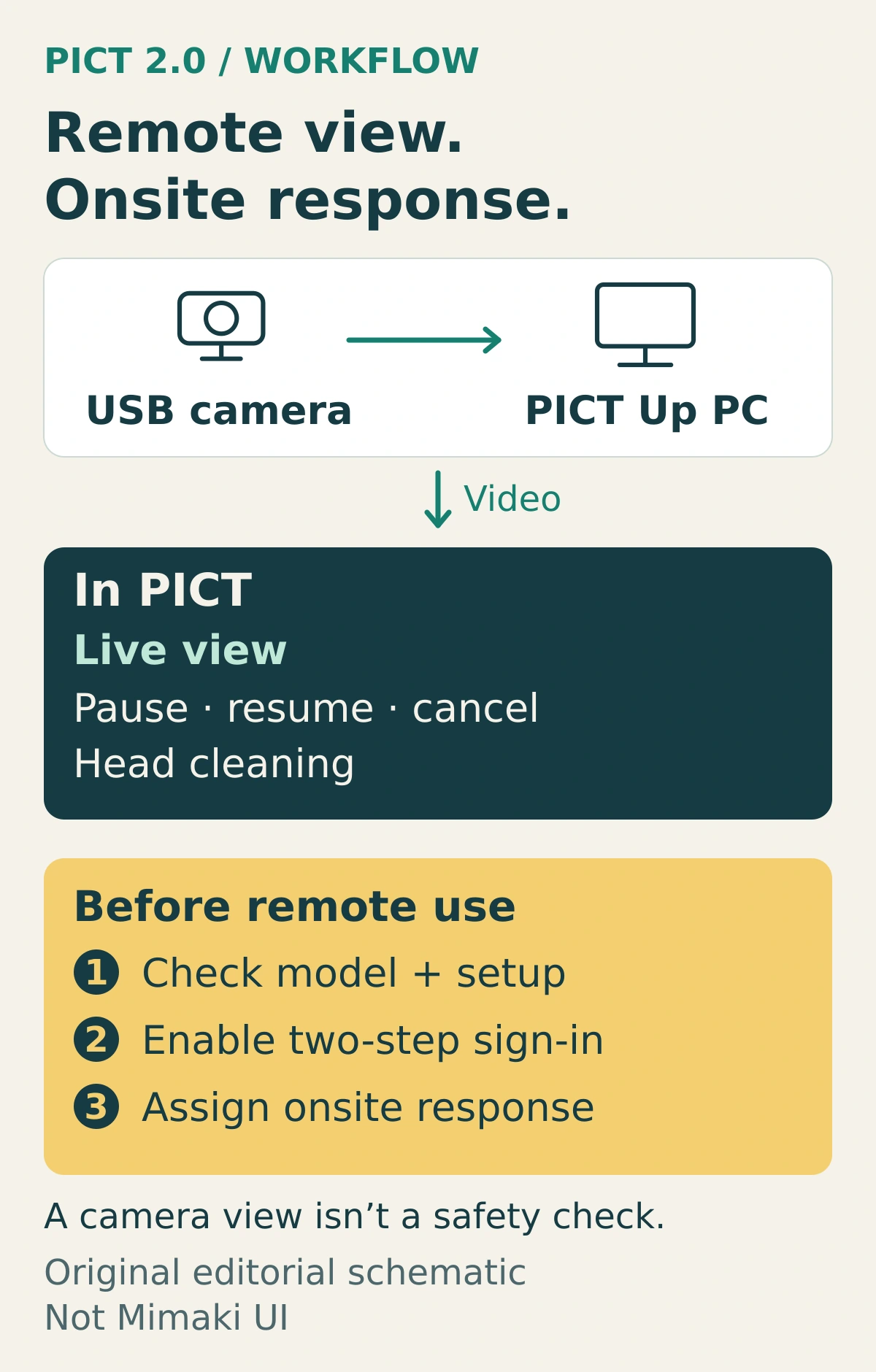
A USB camera connects to the PC running PICT Up for remote viewing. Mimaki’s announcement lists Dashboard commands for pause/resume, print cancellation and head cleaning.
Start with the camera position. During a supervised trial, decide which part of the process needs to be visible and check the view under normal shop lighting. Look for obstructions, glare and areas outside the frame. A useful production view should help an operator answer a specific question, such as whether the visible media is feeding as expected.
Keep a person available to respond at the machine. Camera coverage cannot establish that every part of a job or its surroundings is safe. Follow the printer’s operating instructions, and do not use remote access as a reason to leave equipment unattended. Agree who may issue commands so an onsite operator and a remote colleague do not work at cross-purposes.
During the trial, record what you expected, what the Dashboard showed and what happened at the printer. If the view freezes or a command’s outcome is unclear, ask the onsite operator to confirm the machine’s state before trying again. Avoid repeating commands simply because confirmation is delayed. Keep this test record with the operator’s instructions.
Confirm support for the exact production setup
The PICT Up 2.00 notes add support for UJF200 Series, TxF330-800 and JFX220-2515. These are additions to support, rather than a complete compatibility list for every new command.
Before rollout, record the printer model, firmware, PICT Up version and RIP version. Check the current help or ask your Mimaki supplier which actions are available for that combination. The public release pages checked for this article do not provide a complete model-by-model remote-operation matrix. A printer appearing in PICT’s general product list should not be taken as confirmation that every command works in every configuration.
For a hardware evaluation, use the same evidence-first approach as our Mimaki CJV200 buyer’s demo test plan: document the exact setup and test with representative shop work. That guide is a demonstration protocol, not evidence of compatibility with PICT’s new controls.
Prepare the client PC before relying on remote access
The download listing offers a 263.84 MB full installer for Windows 10 64-bit and Windows 11. Mimaki’s system requirements also specify an Ethernet port and at least 3 GB free on the C drive; supported viewing browsers include Chrome, Edge and Safari, excluding Safari for Windows.
Review the client setup instructions with whoever maintains the shop’s computers. Mimaki warns that sleep can interrupt periodic collection of printer logs and parameters, and asks users to check internet access and PC time settings. Have the network administrator review required connections rather than improvising firewall changes.
Choose a maintenance window for the update. Preserve the working configuration, follow the official installation guidance and verify that normal production still works before adding remote commands to the operator’s routine.
Enable the email-code sign-in check
Mimaki describes optional email-code two-step verification for sign-in, using the registered email address. The release does not establish broader protection guarantees.
Test the sign-in flow with the person who will use it during a shift. Confirm they can receive the email and know whom to contact if access fails. Review who needs account access, and consider what the camera frame reveals about customer jobs or staff. Limit unnecessary exposure when choosing its position.
Test settings recovery as a separate workflow
Mimaki says RasterLink8 settings can be saved through PICT to linked Google Drive or OneDrive storage for recovery or reuse on another PC. Its announcement points to the RasterLink8 manual for procedures.
Treat the published scope as settings backup. Do not assume it includes customer artwork, complete job archives, installed applications or a whole-PC recovery image. Follow the manual to establish what is included, and keep separate backups for production assets outside that scope.
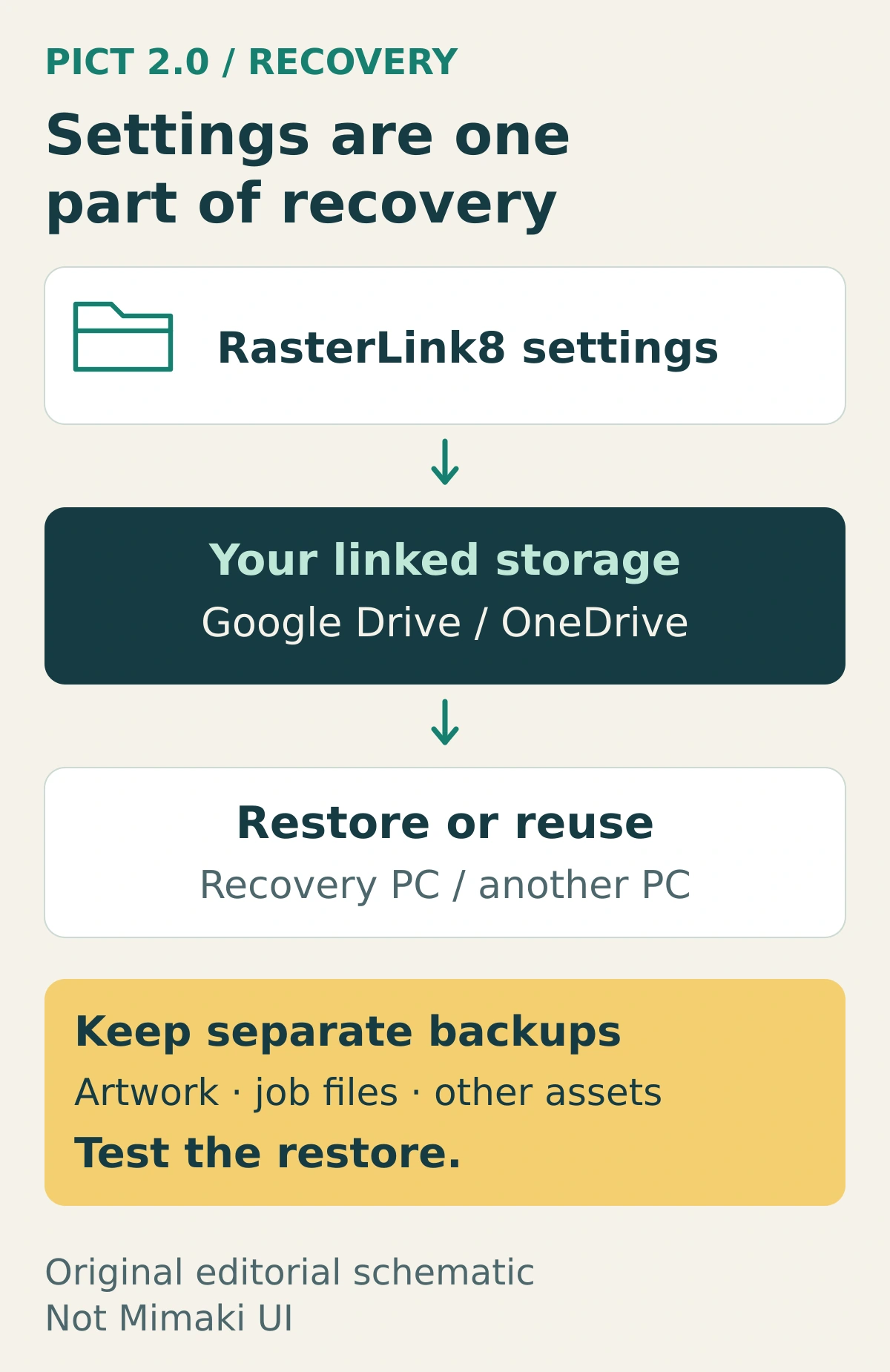
Run a controlled recovery exercise before depending on the cloud copy. Use an approved test environment, record the software version and backup date, restore according to the manual, and compare the resulting settings with the original. Then check a representative job. Keep the outcome with the shop’s recovery instructions so another operator can repeat the process.
The announcement and installer page checked for this article do not state new pricing. Confirm applicable service and storage terms before committing. Our recommendation is a staged adoption: verify the model and setup, test viewing and sign-in, agree the onsite response procedure, then validate any supported commands and settings recovery. Record unresolved checks before expanding use.
Featured image and body diagrams: original TopClassDesigns editorial schematics. They are conceptual illustrations, not Mimaki interface screenshots or evidence of tested performance.