A batch of personalized cards can contain perfect design work and still leave the shop with missing names, duplicate records or the wrong delivery order. Adobe® InDesign® Data Merge reduces repetitive layout work, but the reliable part of the workflow comes from how the shop prepares, checks and finishes the data.
This guide uses a hypothetical name-badge run to show that workflow. It is based on Adobe’s current documentation and practical production planning, not a timed software test. The same checks can help with simple personalized cards, labels and other record-driven print jobs.
Define one record before touching the layout
Write down what one row means. For name badges, it might represent one person receiving one badge. If an organization needs three copies for a person, decide whether the quantity will be handled in the data or downstream production. Mixing both approaches can silently triple an already expanded record.
Give each record a stable identifier that stays in the working data and quality-control log. A name alone is a poor identifier because two people can share it. Keep operational fields such as record ID and delivery group separate from the fields that should print.
Agree on the required order before merging: alphabetical, organization, table assignment or another approved sequence. That order should be explicit. A spreadsheet’s current sort is not necessarily the customer’s intended packing order, and rearranging a PDF later can make reconciliation harder.
Clean the source while preserving its meaning
Ask for a single approved data file rather than a stream of corrections across email and chat. Establish a cutoff and a revision name, then preserve that incoming file unchanged. Make a production copy for cleanup and record substantive corrections for approval.
Review empty required fields, duplicate IDs, leading or trailing spaces and inconsistent capitalization. Preserve meaningful punctuation, accents and leading zeroes. A value such as 0042 may be an identifier rather than a number; spreadsheet conversion can change it before InDesign ever sees it.
Adobe documents comma-delimited CSV, tab-delimited TXT and semicolon-delimited text as supported source formats. Column headers identify merge fields; image-field headers use an @ prefix and point to image files. Prepare the format the documented workflow expects, then inspect the exported text file rather than assuming it matches the spreadsheet view.

Build a template around the hardest records
Designing around the first short name makes a weak test. Find the longest approved name, a name with an accent, a record with an optional blank field and any unusual punctuation. Use them to assess the layout before merging the full batch.
Set a deliberate typography rule. If a long name does not fit, should the frame grow, the name wrap, the type reduce within an approved limit or the record go to a manual exception list? Decide that with the customer or designer. Quietly shrinking one badge to unreadable type solves an overflow warning while creating a different problem.
In Adobe’s documented workflow, open Window → Utilities → Data Merge, select the data source and insert the desired field placeholders. Apply paragraph and character styles to those placeholders. Preview representative records, then create the merged document or export through the panel’s PDF option.
Keep this layout tied to the approved physical product: trim, bleed, safe area, hole or slot position and finishing requirements. A data merge is still a print job. Use the same artwork checks that apply to a single design.
Separate record placement from finishing order
Adobe provides single-record and multiple-record layouts. Multiple-record placement can arrange several records on a page, but the arrangement still needs to fit the intended cutting and packing sequence. Do not assume that reading left to right on a press sheet produces the desired order after the stack is cut.
Make a small numbered paper dummy before committing to a large run. Mark six or eight fictional records in their proposed sheet positions, stack them as production would, then simulate the cuts and collection order. If the result is wrong, resolve the imposition or data sequence before making hundreds of personalized pieces.
Duplex work adds another dependency: fronts and backs must stay paired through printing and finishing. Use an approved workflow and a small physical verification set. A correct front-side preview cannot establish back-side matching or sheet-flip behavior.

Reconcile counts and exceptions before release
Check the record count at several stages: approved input, selected merge range, merged output and finished quantity. Page count alone is insufficient when a page contains several pieces, blank positions or intentionally repeated records. Reconcile the actual records and any planned duplicates.
Inspect the difficult records again in the exported production PDF. Confirm that required text appears, special characters survived and no unexpected blank items were created. Review any overset-text or missing-image warnings instead of assuming the absence of a visible problem on the first page means the entire batch passed.
Maintain a short exception list with record ID, issue, decision and approver. If the customer corrects one name after approval, update the controlled source and issue a new revision. Avoid manually editing the PDF while leaving an old source file ready to reproduce the error on the next run.
Make delivery and reprints straightforward
Pack the finished batch in the agreed order and label the groups using the same identifiers as the job record. Count each group against the expected quantity. For a missing or damaged piece, the stable record ID allows a targeted reprint without guessing which of two similar names was intended.
Keep only the personal data needed for the job, restrict access to the production team and use the shop’s agreed retention process. Do not copy customer names, addresses or photos into public tutorials or promotional screenshots. The fictional examples in this article are sufficient to explain the workflow.
Finally, save the approved source revision, template revision, output file and release checks together. The design file is only one part of a repeatable batch. If the job also relies on a particular print setup, connect it to a repeat-order production record so the next run preserves both the data logic and the intended appearance.
Primary references
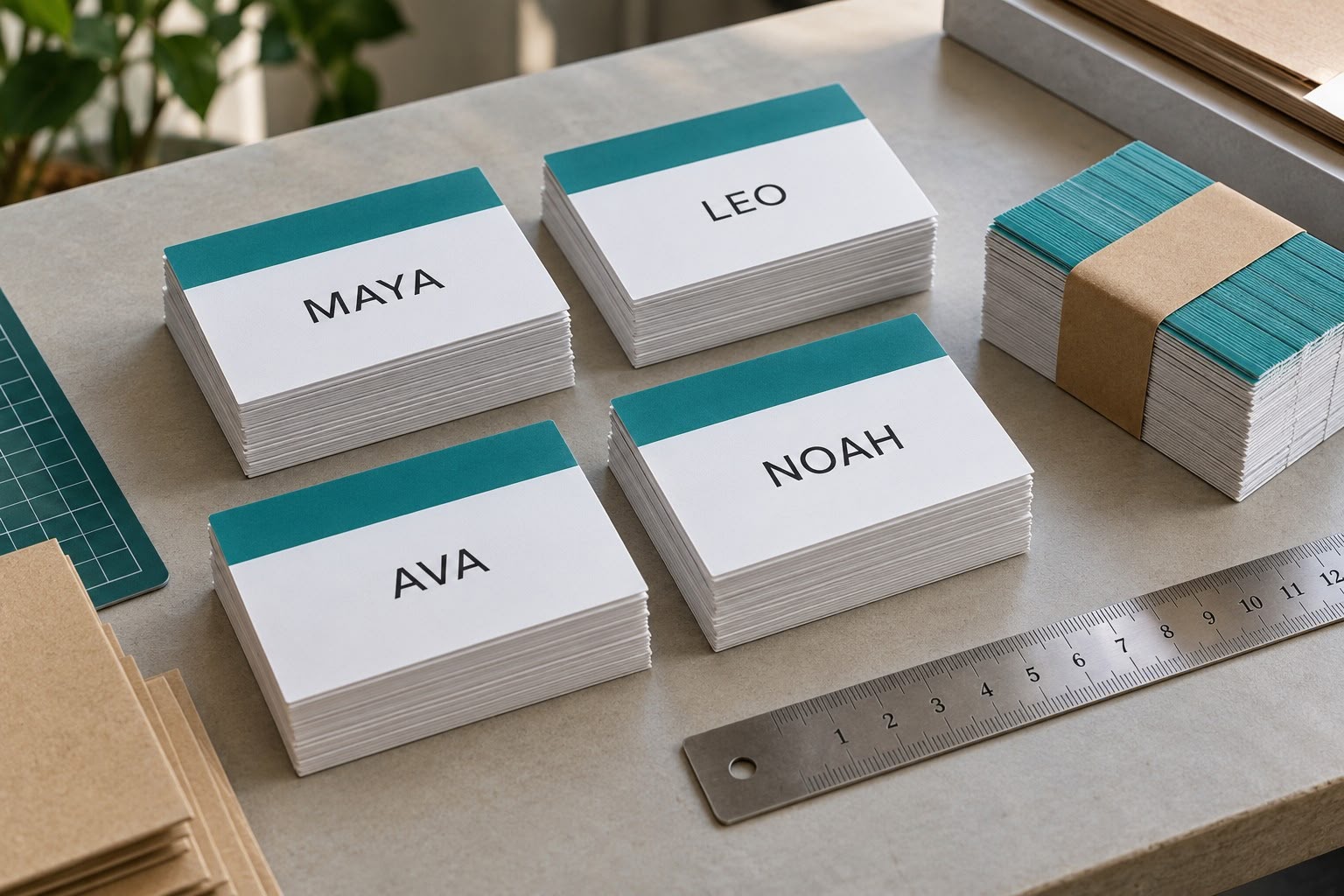
References checked October 11, 2026. Featured image is an AI-generated illustration of a fictional badge job. Adobe and InDesign are either registered trademarks or trademarks of Adobe in the United States and/or other countries. This independent guide does not imply Adobe endorsement.